How to Use Pomodorian: The Complete Guide
A complete walkthrough of Pomodorian: the timer, task list, AI planner, ambient sounds, Never Dumb breaks, analytics, and settings.
Pomodorian is a free, AI-powered Pomodoro timer. No account required.
Try the timer→Pomodorian is a free Pomodoro timer with an AI planner, ambient sounds, and analytics built in, and you don't need an account to use any of it. It's for anyone who wants to sit down, plan a focus session in seconds, and just work. This guide covers what you can actually do inside the app. If you're new to the Pomodoro technique itself and want the method explained, read the Pomodoro technique for beginners first. This one is the practical walkthrough.
Start Your First Pomodoro
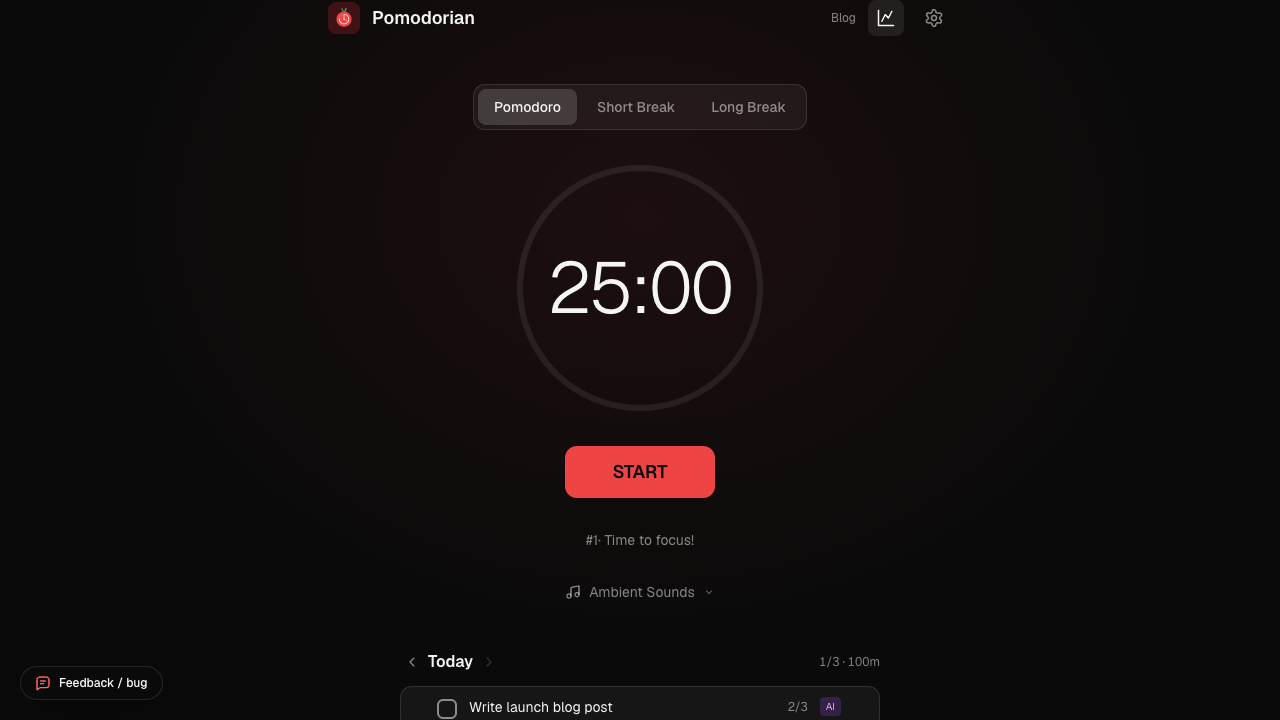
Open Pomodorian and you'll see three modes at the top: Pomodoro, Short Break, and Long Break. Pomodoro defaults to 25 minutes, Short Break to 5, Long Break to 15. Hit START and the countdown begins.
While the timer runs you can PAUSE and RESUME from the same button, and SKIP if you want to jump to the next mode without finishing the current one. Every fourth completed pomodoro (the interval is adjustable in Settings) triggers a Long Break instead of a Short one, which is the classic Pomodoro cycle. A small counter under the timer shows which pomodoro you're on, so you always know where you are in the cycle.
The fastest way to run the timer is the keyboard: hit the Space bar to start, pause, or resume, no clicking required.
A few small touches make it easier to work in another tab while the timer runs. Your browser tab title updates live with the time remaining and the current mode, so you can glance at it without switching back. And if you've allowed notifications, Pomodorian sends you a desktop alert the moment a pomodoro or a break ends, so you don't need to keep the tab in view at all.
Add Your Tasks
Below the timer is your task list. Click "+ Add Task", type what you're working on, and it's added. Click a task to make it your active task: the pomodoros you complete while it's active get logged against it, and its progress shows up as completed-over-estimated (for example 2/4) right on the row.
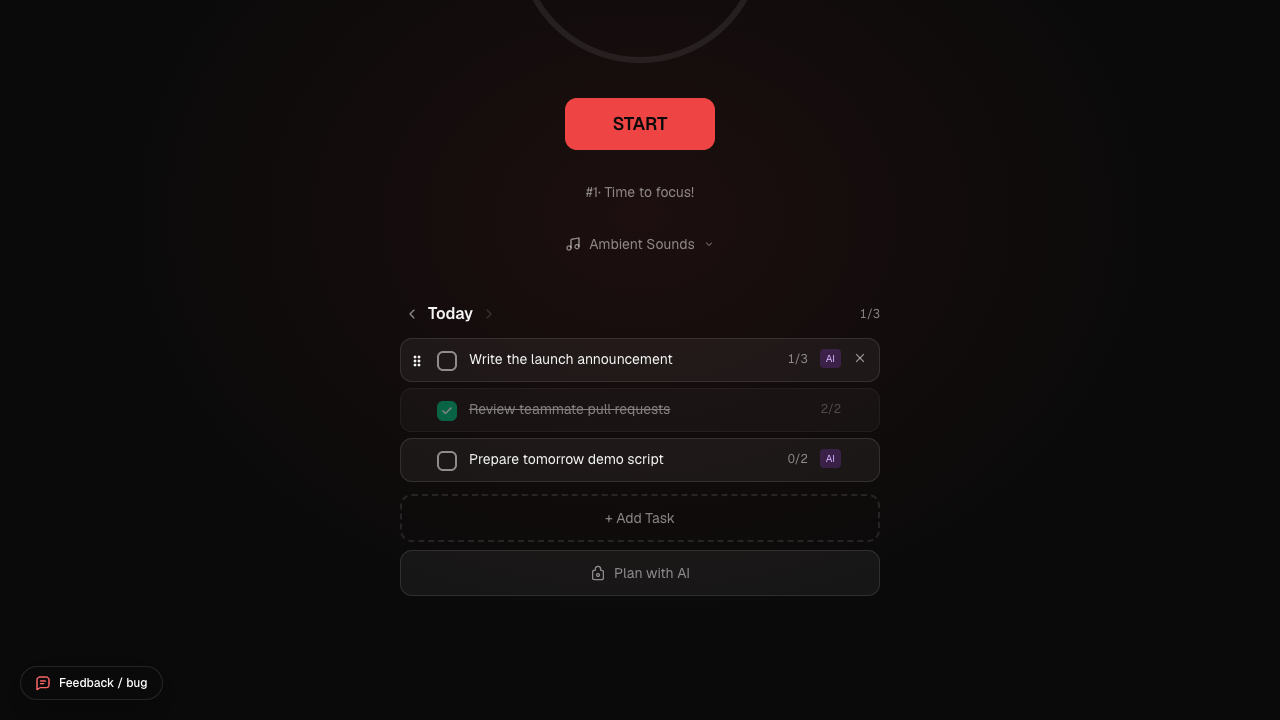
Want to rename a task? Double-click its title, edit it inline, and press Enter or click away to save. Complete a task and it goes translucent with a strikethrough, like "Review teammate pull requests" above, while its pomodoro count locks in at whatever it reached (2/2 in that example).
To reorder tasks, hover a row and a small dotted handle (⠿) appears on its left edge. Grab it and drag to a new position. If you'd rather not drag, click into the handle so it's focused and use the Up and Down arrow keys instead, both routes move the same task, so the list stays fully usable on touch screens and keyboards alike. A single leftover task has nothing to reorder against, so the handle only shows up once you have at least two.
The task list also has a day view. Use the arrows next to "Today" to look back at any past day: what you worked on, how long, and what got completed. Past days are read-only, you can't edit or check off history. And you never lose track of an unfinished task: anything you didn't complete carries over automatically to today's list, so nothing quietly falls off.
Tasks that came out of the AI planner carry a small purple "AI" badge so you can tell at a glance which ones you wrote yourself and which ones were suggested. Either way they behave the same: check them off, edit them, delete them, and watch their pomodoro count climb as you work through them.
Let the AI Plan Your Session
If you don't want to break a goal into tasks yourself, click "Plan with AI" at the bottom of the task list. It works in two steps.
Step 1: describe the goal. The AI Session Planner opens with one question: "What do you want to get done in your next pomodoro sessions?" Type it in plain language, in any of 8 supported languages, the way you'd tell a colleague, then click "Generate plan".
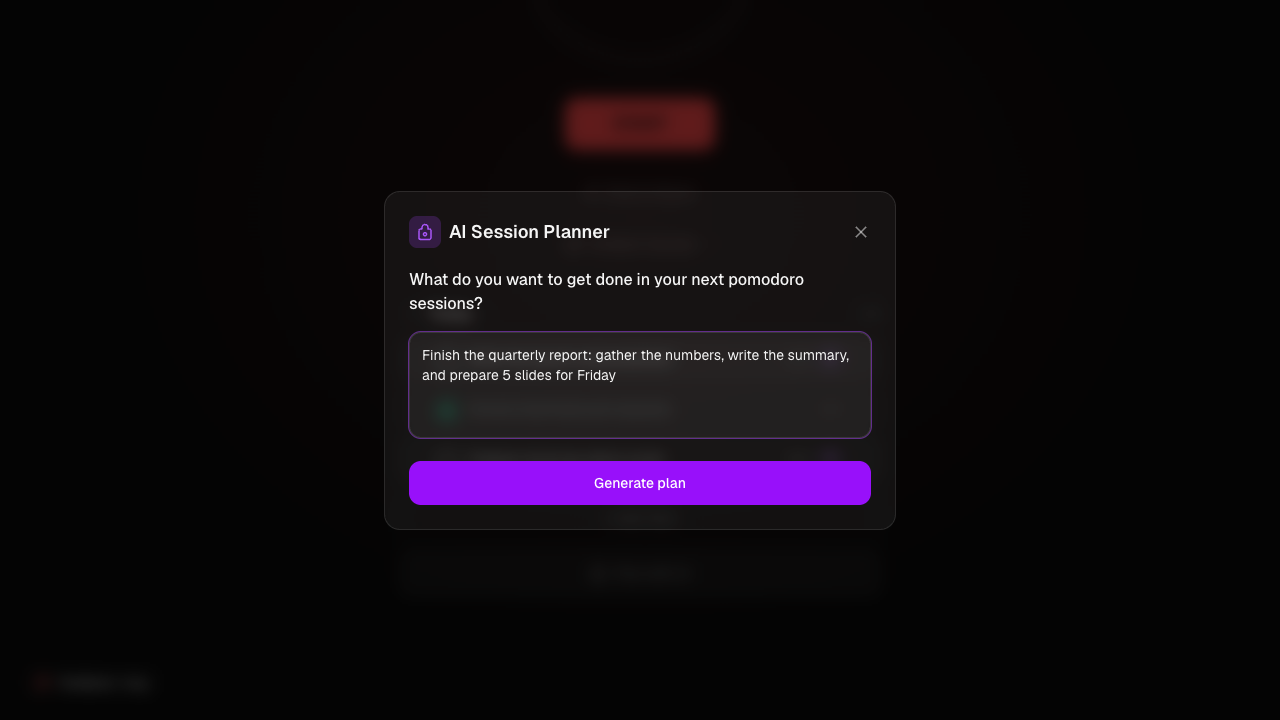
Behind the scenes, that description gets sent to Claude, which breaks it down into a list of tasks, each with an estimated number of pomodoros.
Step 2: review and adjust. Nothing gets added to your list automatically. You land on an editable review screen first: rename any task, use the plus and minus steppers to adjust its pomodoro estimate, delete tasks you don't want, add your own, and reorder the whole list with the up and down arrows.
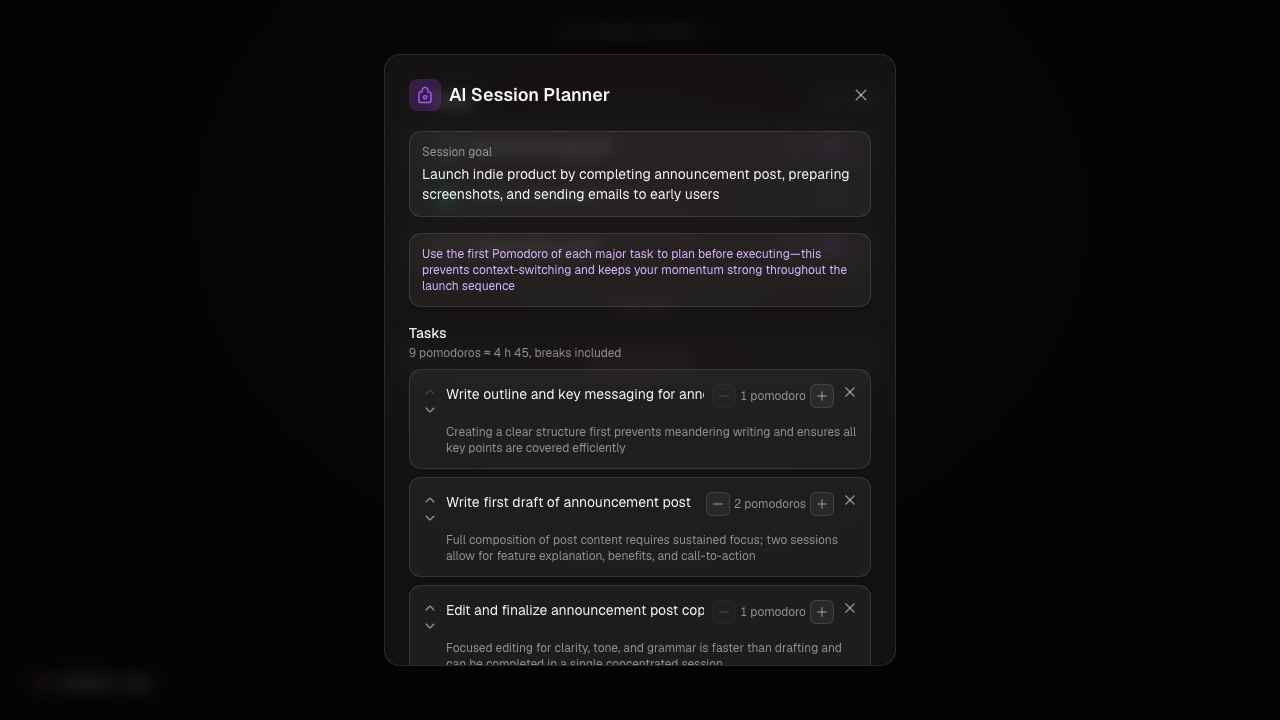
A running total at the top tells you how many pomodoros the plan adds up to and roughly how many hours that is. When it looks right, either "Add N tasks" to drop them into your list, or "Add & start" to import them and jump straight into the first pomodoro.
Not happy with the plan? "Start Over" clears the results but keeps your goal text in the box, so you can tweak the wording and regenerate without retyping the whole thing. Above the task list, the plan also shows a one-line session goal and, sometimes, a short tip, both generated alongside the tasks.
One honest limit: the planner is rate-limited to 10 requests per hour, so it's meant for planning sessions, not for hammering it repeatedly. If you want more detail on how the planner works, there's a dedicated page at /ai-task-planner.
Set the Mood with Ambient Sounds
Open the "Ambient Sounds" panel under the timer and you'll find five options: Rain, Café, Lo-fi, Forest, and Fireplace. Tap any of them to start playing it, and tap again to stop.
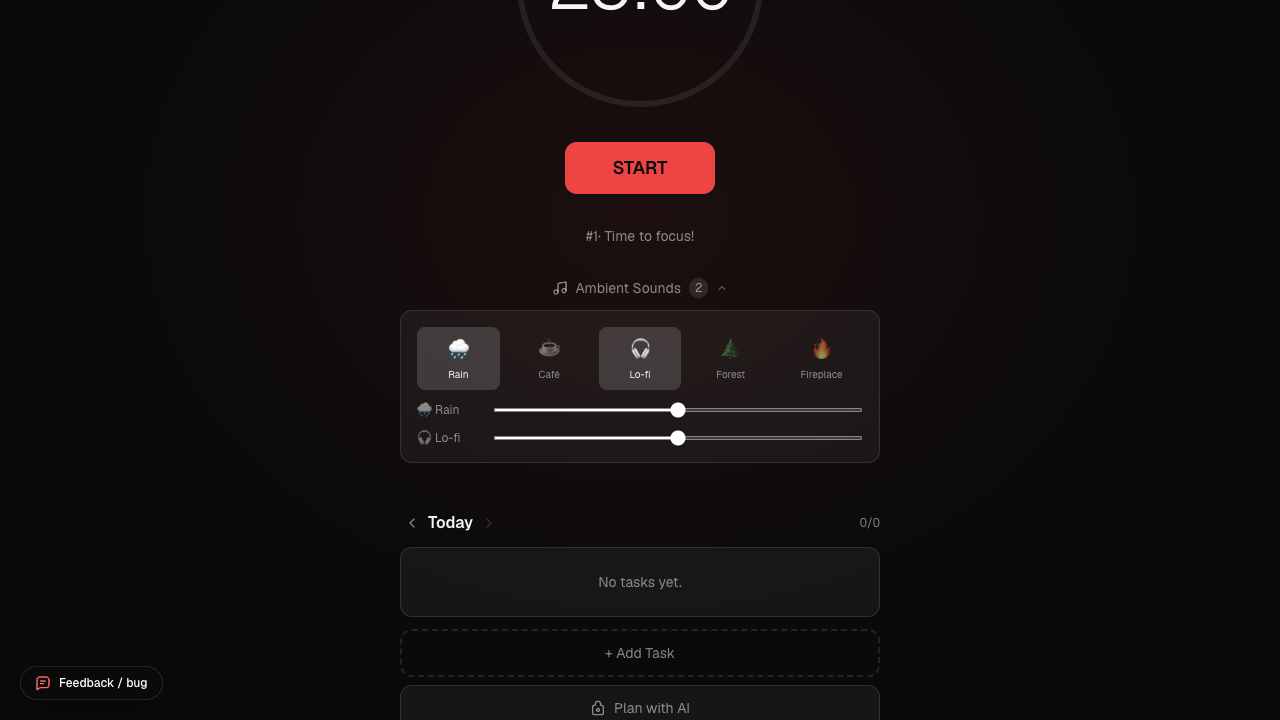
You can layer as many as you like at once, rain under a crackling fireplace works just fine. The panel's header badge counts how many are currently playing, "2" in the screenshot above, where Rain and Lo-fi are stacked together. Each active sound gets its own volume slider underneath, so you can mix a soft rain under a louder lo-fi track, or the reverse. They loop continuously in the background for as long as you leave them on, through pomodoros and breaks alike, so you set the mix once and forget about it.
Turn Breaks into Training with Never Dumb
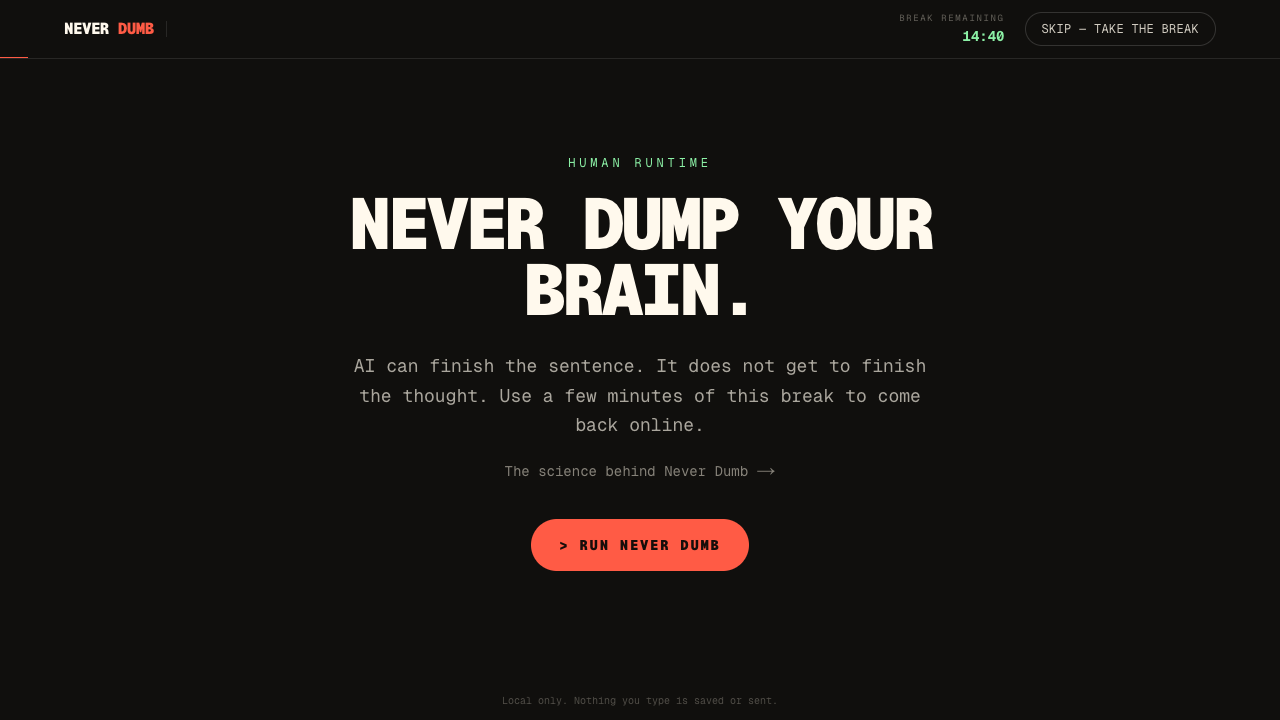
Never Dumb is Pomodorian's take on the break: instead of a blank timer, your long breaks can open into a hub of 14 short exercises, split into Serious, Fun and Reset paths, designed to give your own thinking a few minutes back. The Serious path includes a Debrief that turns your last focus blocks into a next step you can add to your task list. It opens automatically on long breaks by default, or on demand through a "Run Never Dumb" button whenever a long break is running. For the full walkthrough of the hub and every exercise, see How to Use Never Dumb.
Track Your Focus
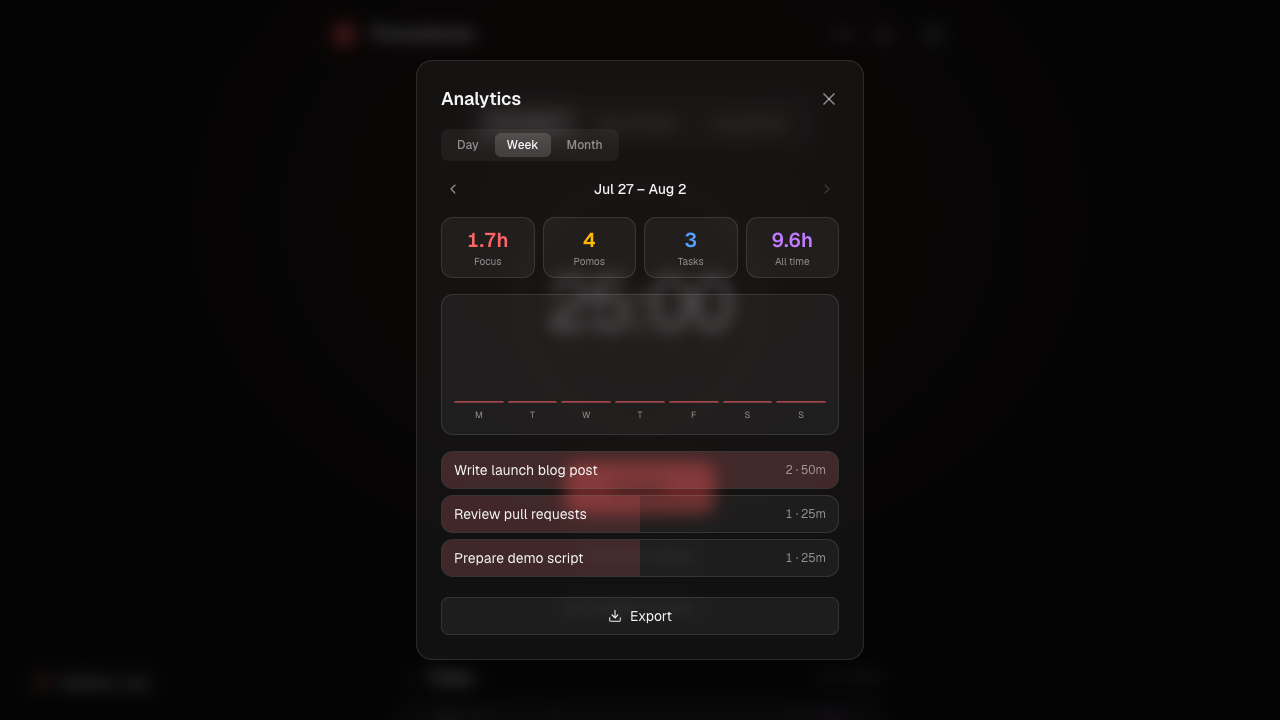
Press R (or click the report icon in the header) to open Analytics. Three tabs, Day, Week, and Month, let you look at your focus at different zoom levels. Stat cards at the top show total focus hours, pomodoros completed, distinct tasks worked on, and either your current streak (on the Day tab) or your all-time hours (on Week and Month). Switch to Week or Month and a bar chart breaks the period down day by day.
The Month tab also shows a GitHub-style contribution heatmap covering your last 20 weeks, darker squares mean more focused minutes that day, so you can see your consistency at a glance. Hover any square and a tooltip gives you the exact date and minutes focused. When you want the raw numbers, the Export button gives you a CSV or a Markdown file of every session in the current period, scoped to whichever Day, Week, or Month you're currently viewing.
Make It Yours
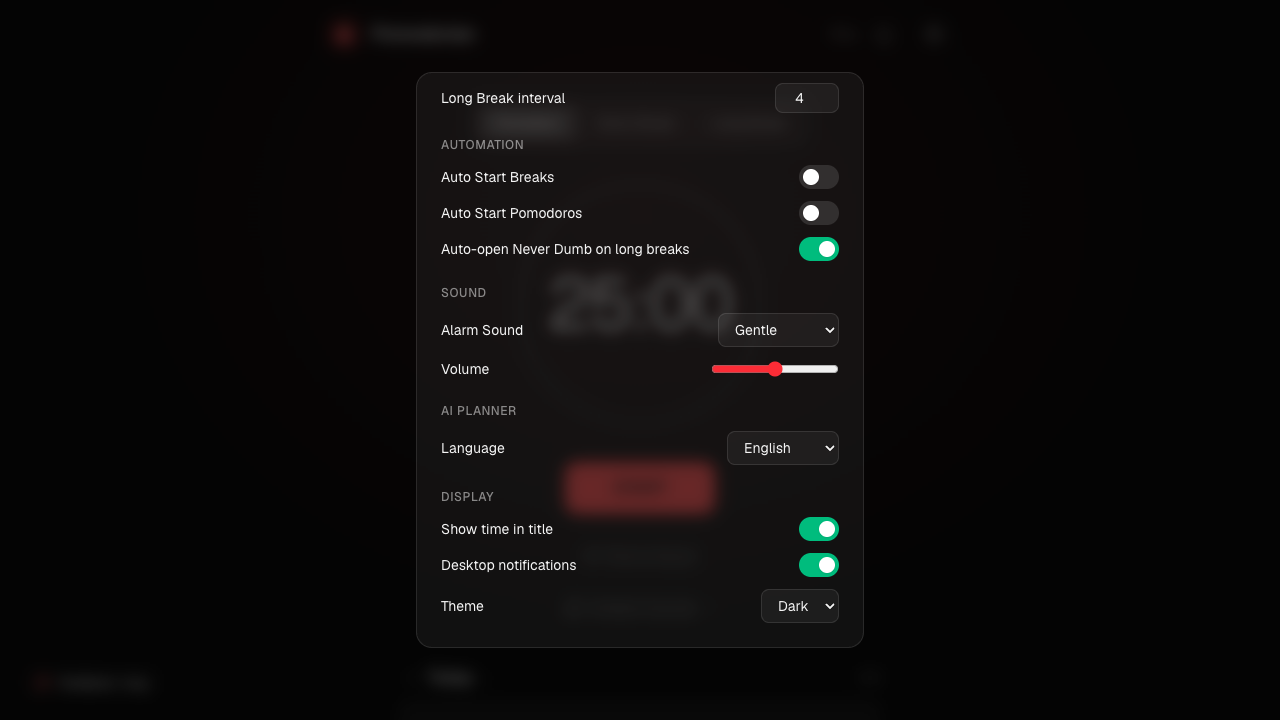
Open Settings (the gear icon, or press S) to adjust how Pomodorian behaves. None of it requires saving or confirming: every change applies immediately and is remembered the next time you open Pomodorian, since it's written straight to your browser's storage as you go.
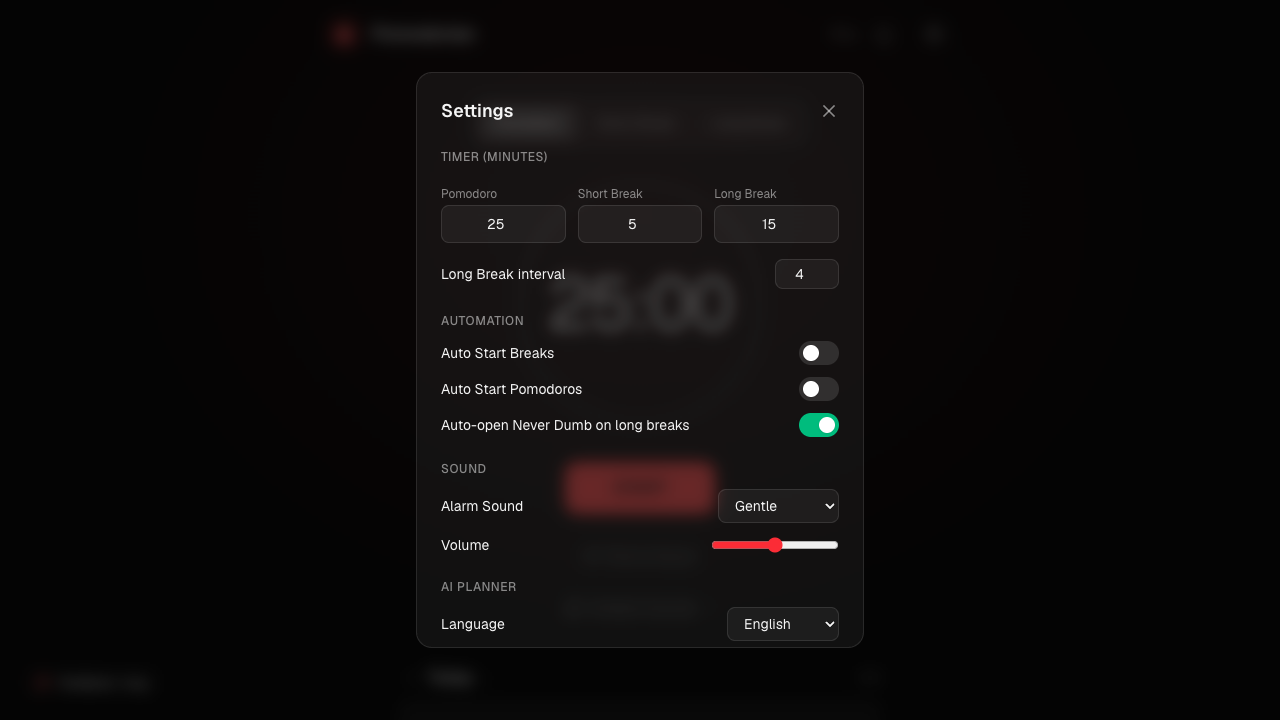
Timer (minutes)
- Pomodoro (default 25). Sets how long each focus block lasts. Shorten it to 15-20 if 25 minutes feels like a wall you hit before finishing a thought; stretch it toward 45-50 for deep work that punishes interruption, like writing or debugging.
- Short Break (default 5). The gap between pomodoros. Leave it short to keep momentum, or bump it up if you need to actually get up and move between blocks.
- Long Break (default 15). The longer reset after several pomodoros. Extend it if you use Never Dumb regularly and want time to finish an exercise rather than rush it.
- Long Break interval (default 4, adjustable 1-10). How many pomodoros happen before a long break kicks in. Lower it if you fatigue fast; raise it if you're deep in flow and don't want the interruption as often.
Automation
- Auto Start Breaks (default off). When on, your break starts the instant a pomodoro ends, no click needed. Turn it on if you tend to forget to take breaks at all.
- Auto Start Pomodoros (default off). The mirror setting: the next pomodoro starts itself once a break ends. Only turn this on if you trust yourself to actually be back at your desk, otherwise you'll burn a pomodoro talking to an empty chair.
- Auto-open Never Dumb on long breaks (default on). Controls whether the Never Dumb screen pops up by itself on every long break. Turn it off if you'd rather trigger it yourself with the "Run Never Dumb" button instead.
Sound
- Alarm Sound (default Gentle; Digital Alert and Bell are the other two). Which sound plays when a timer ends. Switch away from Gentle if it doesn't cut through your headphones once ambient sounds are also playing.
- Volume (default 50%). Alarm loudness, set independently from your ambient sound volumes. Turn it down if you share a room, up if you tend to zone out completely during focus blocks.
AI Planner
- Language (default English) picks which of 8 languages the AI planner writes tasks, session goals, and tips in. It doesn't follow your browser's language automatically, so if you'd rather get your plans in French, Spanish, or one of the other five, switch it here once and it'll stick.
Display
- Show time in title (default on). Puts the countdown and current mode directly in your browser tab's title. Turn it off if a ticking tab title distracts you more than it helps.
- Desktop notifications (default on, needs a one-time browser permission grant). Fires a system notification when a pomodoro or break ends, so you can look away from the tab entirely.
- Theme (default Dark). Switches the whole interface between dark and light. Purely visual, no effect on functionality.
The full keyboard shortcut list:
| Key | Action |
|---|---|
| Space | Start / Pause / Resume the timer |
| 1 | Switch to Pomodoro |
| 2 | Switch to Short Break |
| 3 | Switch to Long Break |
| S | Open / Close Settings |
| R | Open / Close the Analytics report |
| ? | Show the shortcuts list |
Your Data Stays Yours
Everything, your tasks, your settings, your session history, lives in your browser's localStorage. There's no account to create and no server-side database storing your data. The only thing that ever leaves your browser is the goal you type into the AI planner, sent to generate your task suggestions, and nothing else.
Pomodorian is installable as a PWA, so you can add it to your home screen or dock and it runs like a native app. Two honest limits worth knowing: because everything lives in localStorage, your data doesn't sync between devices or browsers, each one keeps its own separate history, and there's currently no offline mode, so you'll need a connection to load the app.
Key Takeaways
- Start a pomodoro with one click or the Space bar, and let the 4-cycle structure (pomodoro, pomodoro, pomodoro, pomodoro, long break) run itself with auto-start enabled.
- The task list carries unfinished work forward automatically and lets you edit, reorder, and review any past day.
- The AI planner turns a typed goal into an editable task list in seconds, but stays capped at 10 requests per hour.
- Ambient sounds and Never Dumb breaks are both optional layers you can turn on only when you want them.
- Everything is stored locally in your browser: no account, no sync between devices, and the AI planner's goal text is the only thing ever sent off your device.
Frequently Asked Questions
Is Pomodorian free?
Yes. The timer, task list, ambient sounds, Never Dumb breaks, and analytics are all free with no account required. The AI planner is also free, within its 10-requests-per-hour limit.
Do I need an account?
No. Pomodorian has no sign-up and no login. Your tasks and settings are saved directly in your browser.
Can I change the timer durations?
Yes. Open Settings and adjust the Pomodoro, Short Break, and Long Break durations in minutes, as well as how many pomodoros happen before a long break.
Does my data sync across devices?
No. All your data lives in your browser's localStorage, so it stays on the device and browser you used to create it. Opening Pomodorian in a different browser or on a different device starts with a fresh, empty history.
How do I install it as an app?
Pomodorian is an installable PWA. Look for the install option in your browser's address bar or menu (it varies by browser), and it will add to your home screen or dock and open like a native app, in its own window, without the browser chrome around it.
Ready to focus smarter?
Try Pomodorian, the AI-powered Pomodoro timer. Free, no account required.
Start Focusing